| 일 | 월 | 화 | 수 | 목 | 금 | 토 |
|---|---|---|---|---|---|---|
| 1 | ||||||
| 2 | 3 | 4 | 5 | 6 | 7 | 8 |
| 9 | 10 | 11 | 12 | 13 | 14 | 15 |
| 16 | 17 | 18 | 19 | 20 | 21 | 22 |
| 23 | 24 | 25 | 26 | 27 | 28 | 29 |
| 30 | 31 |
- 국비지원취업
- 디자인교육
- 백준
- 오픈챌린지
- JPA
- baekjoon
- UXUI기초정복
- 부트캠프
- Java
- 오픈패스
- Spring
- 백엔드개발자
- 백엔드 부트캠프
- 티스토리챌린지
- UXUI챌린지
- 내일배움카드
- 오블완
- API
- 패스트캠퍼스
- 디자인강의
- 국비지원
- KDT
- OPENPATH
- UXUIPrimary
- 국비지원교육
- 시스템설계
- Be
- 환급챌린지
- 디자인챌린지
- mysql
- Today
- Total
군만두의 IT 개발 일지
[GitHub] 프로필 README.md 꾸미기 - 뱃지, Stats, 잔디 위젯 추가 방법 본문
목차
📌 요약
GitHub 프로필 페이지를 꾸미는 데 자주 사용하는 요소들을 정리한다. 뱃지, GitHub Stats, 잔디 그래프, 방문자 수 위젯을 코드와 함께 소개한다. 일부 기능은 동작하지 않을 수도 있다.
GitHub 프로필 README.md는 본인의 GitHub 아이디와 동일한 이름의 레포지토리를 생성하면 자동으로 프로필 페이지에 표시된다.
예: GitHub 아이디가mandusitstudy라면mandusitstudy/mandusitstudy레포지토리를 생성한다.
📌 1. 뱃지 (Shields.io)
사용 기술 스택을 시각적으로 표현할 때 Shields.io 뱃지를 많이 사용한다.
공식 사이트: https://shields.io
기본 형식은 아래와 같다.

예시: Java, Spring, MySQL 뱃지


로고 이름은 Simple Icons에서 검색할 수 있다. 색상 코드도 해당 사이트에서 브랜드 색상을 확인할 수 있다.
style 옵션:flat,flat-square,for-the-badge,plastic중 선택한다.
📌 2. GitHub Stats
커밋 수, 스타 수, PR 수 등의 통계를 카드 형태로 표시하는 위젯이다. github-readme-stats 오픈소스를 사용한다.
기본 Stats 카드
가장 많이 사용한 언어 카드
theme 옵션으로 카드 색상을 변경할 수 있다.
예:dark,radical,merko,gruvbox,tokyonight,buefy등
전체 테마 목록은 공식 문서에서 확인할 수 있다.
📌 3. 잔디 그래프 (Contribution Graph)
GitHub 잔디(contribution graph)를 README에 삽입할 수 있다. github-readme-activity-graph를 사용한다.
[](https://github.com/ashutosh00710/github-readme-activity-graph)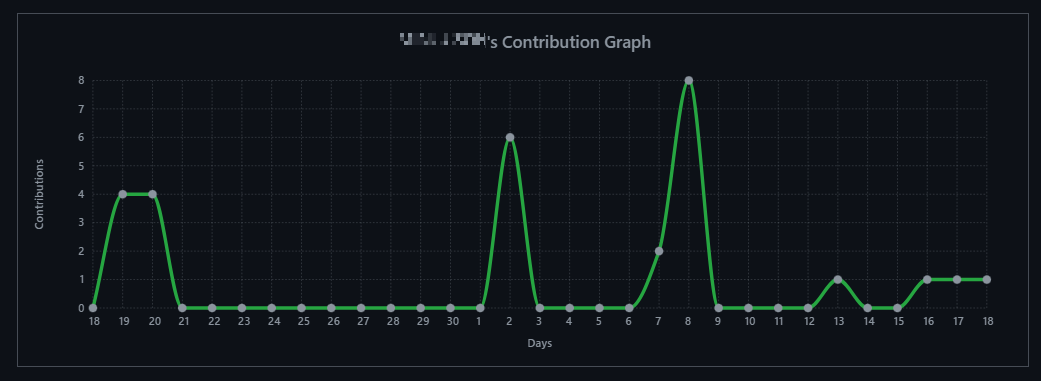
theme 옵션으로 잔디 색상을 변경할 수 있다.
예:github,github-compact,dracula,tokyo-night등
전체 테마 목록은 공식 문서에서 확인할 수 있다.
📌 4. 방문자 수 (hits)
프로필 페이지 방문자 수를 뱃지 형태로 표시할 수 있다. hits.seeyoufarm.com을 사용한다.
[](https://hits.seeyoufarm.com)
hits.seeyoufarm.com에서 URL을 입력하면 뱃지 코드를 자동으로 생성해준다. 색상도 사이트에서 직접 설정할 수 있다.
📌 5. 전체 예시 구성
위 요소들을 조합하면 아래와 같이 프로필 README.md를 구성할 수 있다.
## 안녕하세요! 👋
[](https://hits.seeyoufarm.com)
---
### 🛠 Tech Stack


---
### 📊 GitHub Stats


---
### 🌱 Contribution Graph
[](https://github.com/ashutosh00710/github-readme-activity-graph)
📌 참고사이트
1) Shields.io, https://shields.io
2) Simple Icons, https://simpleicons.org
3) anuraghazra, "github-readme-stats", https://github.com/anuraghazra/github-readme-stats
4) Ashutosh00710, "github-readme-activity-graph", https://github.com/Ashutosh00710/github-readme-activity-graph
5) hits.seeyoufarm, https://hits.seeyoufarm.com
'문서 > Git' 카테고리의 다른 글
| [GitHub] github-readme-stats 오류 해결 - Vercel fork 배포 및 Deployment 캐시 문제 (0) | 2025.11.27 |
|---|---|
| [Git] 특정 커밋으로 되돌리기 - git reset --hard 및 강제 푸시 (0) | 2023.10.24 |

